


Free Lines
The frame "Free lines" contains a table with the list of input free points. Adding free points is performed in the "New free line" dialog window.
The lines are defined between individual points (segments, arcs, circles) or around individual points (circles). The lines can be introduced both between free points and between points located on interfaces including the terrain surface.
The lines may intersect each other and may have an arbitrary number of contact points - intersections of individual lines are determined by the program when adjusting the geometrical model. The free lines may be used to introduce beam elements into the model.
The type of line is selected from the combo box. The following modes are available:
| A combo list is used to select the desired line (segment, arc, and circle). | |
- segment | Clicking individual points on the desktop with the left mouse button creates a point to point line | |
- arc | Use the combo list to choose a particular mode of defining an arc segment (third point, center, radius, height). Clicking the left mouse bottom on the desktop then selects points to define an arc. When selecting one of the following options - center, radius, or, you are further requested to select from the combo list the orientation (positive, negative). | |
- circle | Use the combo list to choose a particular mode of defining a circle (center and radius, three points). Clicking the left mouse button on the desktop then selects points to define a circle. The combo list is also used to select the orientation (positive, negative). | |
The free lines can also be edited on the desktop with the help of active objects.
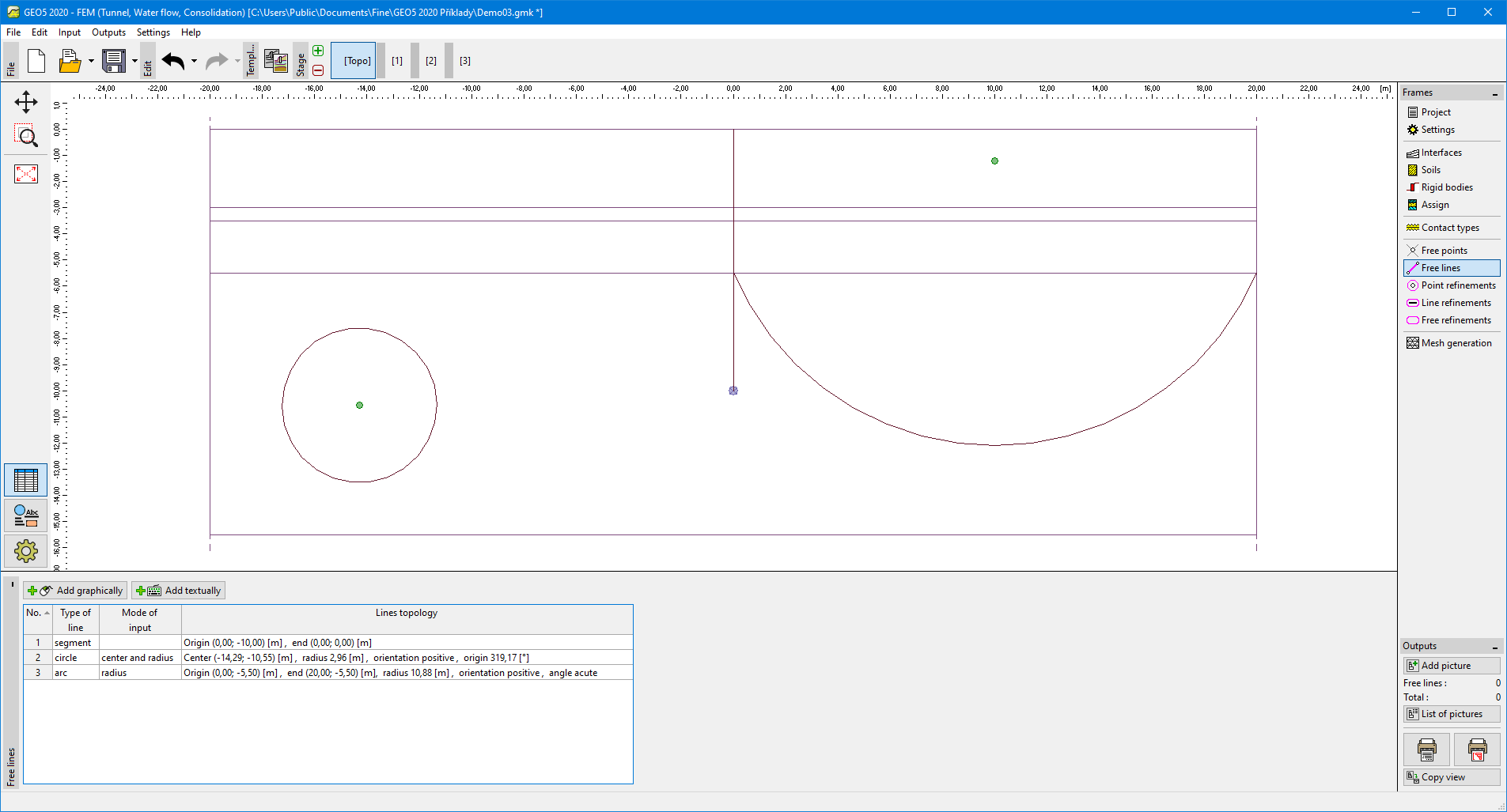 Frame "Free lines" - different types of free lines