


Tables
A table is a list of input data (for example, a list of surcharges, soils, profile interface etc.). The table header contains a list of items (surcharge, name, width, size…).
Data in some tables can be sorted by columns (by clicking on the right part of the column head - with an arrow). This way, we can sort the data in the table alphabetically or by value.
Special table options
Special table features are available using the "Options" (hamburger) button  . This button is visible in all GEO5 programs tables. Usually, the export of data (in XLSX, XLS, ODS, CSV, and HTML formats) is available here, but some tables have additional features. These special features can be also shown using the right mouse button on the table header.
 Data export from table
Adding new items to the table
The form of the table depends on the selected frame. Graphical bonds between the items in the table and on the desktop are important. Some data (objects) can only be input textually, others also graphically by using the mouse. If the program enables both textual and graphical input, both buttons are shown in the table.
If the table still does not contain any items, or no item is selected in the table, only the "Add", "Add textually" or "Add graphically" buttons are visible above the table. Using these buttons, new items can be added into the table.
 Adding a new item into the table
Editing table items
If a row is selected (highlighted green), the "Edit" and "Remove" buttons are activated above the table. The number of items is given in the brackets. Using these buttons, individual rows can be edited.
The selection of items is made by pressing the left mouse button. Clicking the right mouse button opens the context menu.
 Editing table items
If the operation enables it (e.g. removal of an item from a table), it is possible to edit more items (rows) at a time. There are two selected rows on the figure below. From the picture, we can see that the only option, in this case, is the removal of both items from the table, and therefore, the "Edit" button is not available.
The selection of more items (rows) in a table is made by holding CTRL and clicking the left mouse button. By holding SHIFT and clicking the left mouse button, all rows above or below the selected rows are selected.
By clicking outside of the selected table rows, the selection is canceled.
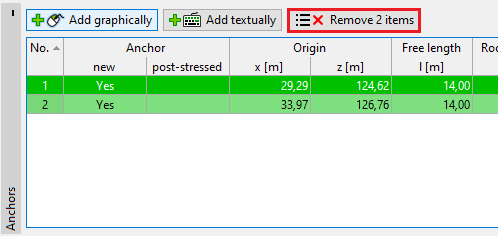 Editing more table items
The selection of rows in the table corresponds with the visualization of the objects on the desktop (and reverse). If a row or multiple rows are selected in the table, the relevant objects on the desktop are highlighted with the same color. If the mouse marker is over one of the objects, the objects are shown bold. After clicking on "Remove", the objects and table rows are shown red.
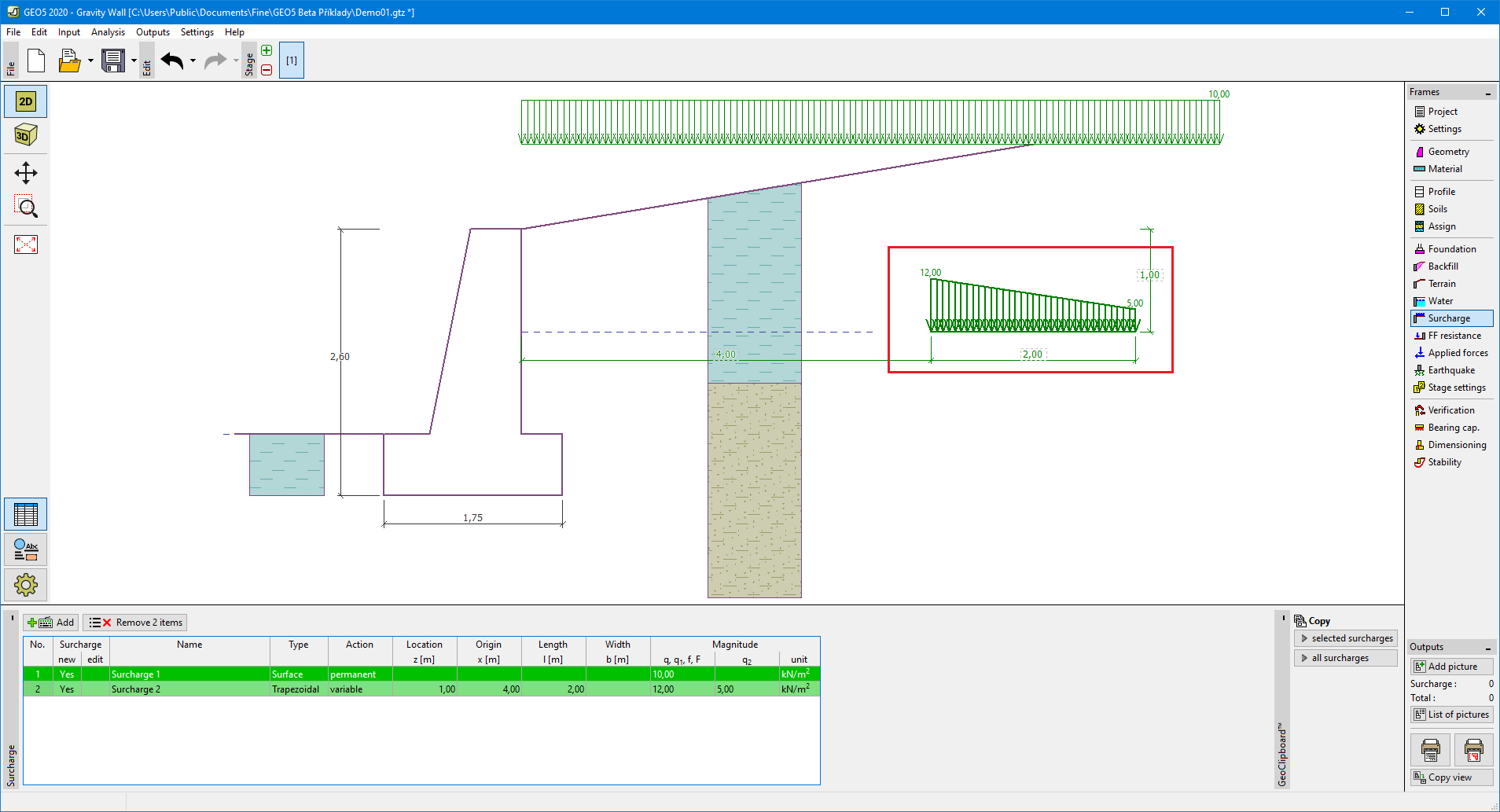 Visualization of selected objects
Marking objects by using these colors is implicitly set. This setting, however, can be modified in the "Drawing styles administrator" dialog window.